01 / ATTITUDE
ATTITUDE
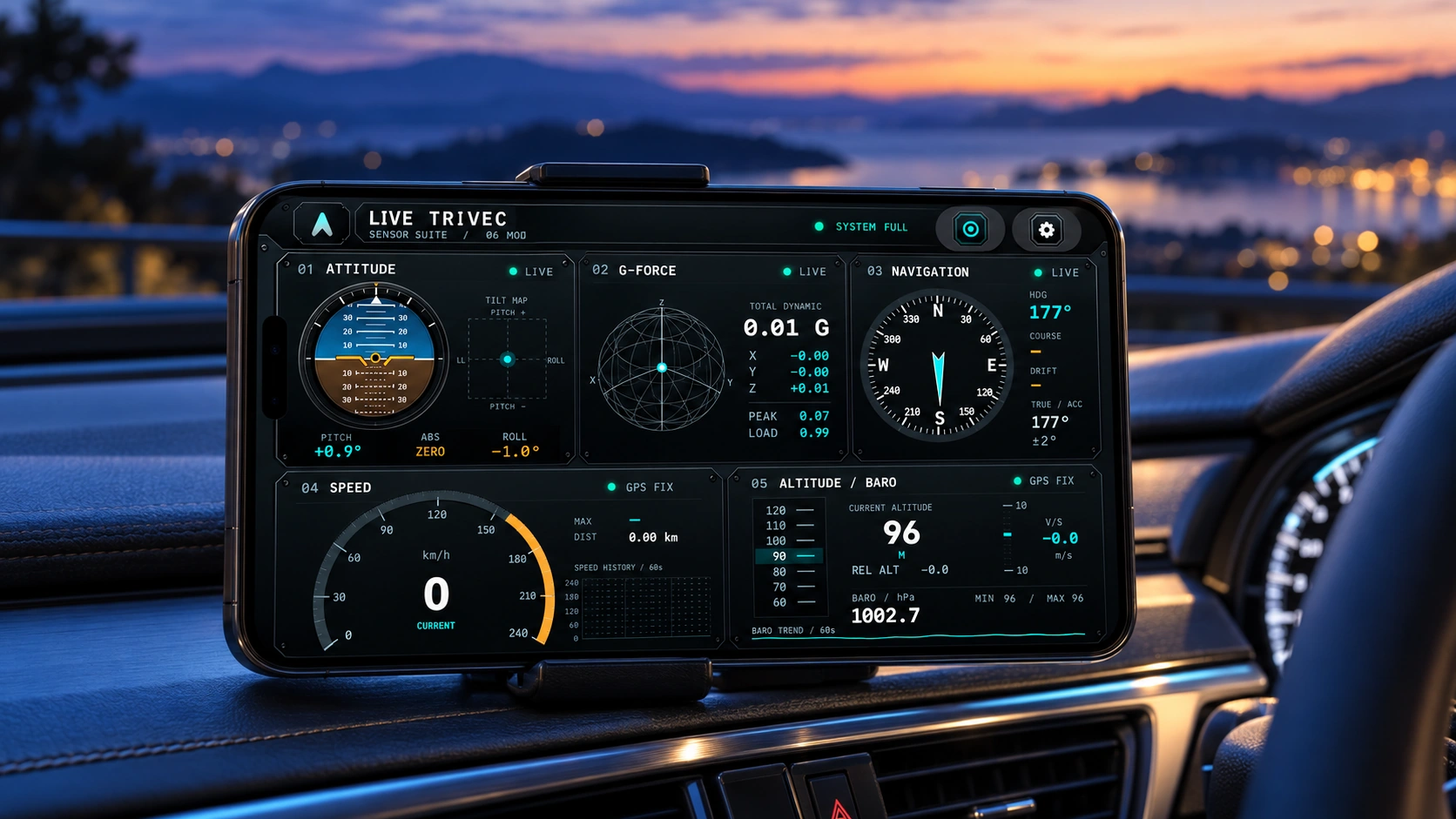
An artificial horizon, pitch and roll, relative ZERO, tilt trajectories and rotation-rate history.
PITCH · ROLL · ZERO
REAL SENSORS. A DIFFERENT PERSPECTIVE.
Motion, direction, speed, altitude and magnetic fields. Discover what the sensors in your iPhone can show you.
01 / LIVE INSTRUMENTS
06Start with LIVE. Open any instrument to explore histories, reference values and the details behind each reading.
An artificial horizon, pitch and roll, relative ZERO, tilt trajectories and rotation-rate history.
Dynamic G and load G, XYZ vectors, 3D trajectories, directional peaks, jerk and shock events.
True and magnetic heading, GPS course, drift, bearing lock and position in decimal or DMS coordinates.
GPS speed, averages and peaks, acceleration trends, distributions and a movement performance timer.
GPS and relative altitude, pressure, vertical speed, reference differences and ascent/descent statistics.
A 3D magnetic vector, total field, XYZ history, reference anomalies, field strips and calibration quality.
02 / GO BEYOND THE NUMBERS
+Explore local magnetic variation with a spatial field map. Compare total field with a reference anomaly, inspect the range and save the completed map as an image. Position tracking and calibration quality guide valid sampling.
Revisit recorded GPS routes in 3D. Rotate, pan and zoom; switch between ISO, TOP and SIDE. Adjust height exaggeration and colour the route by a recorded measurement, with playback following the same point in time.
Product presentation visuals · example values
03 / SESSION & LOGS
↗Choose your session channels. Record manually or use a timer, then name and keep the log on your device.
Move through the timeline. Review maps, 3D routes and synchronized graphs, together or separately.
Review statistics or export CSV when you want to work with the recorded measurements elsewhere.
04 / DAILY MOBILITY
Steps, walking distance and floors climbed, with hourly activity and day, week, month and year views. DAILY and LIVE share the same daily observation.
Choose ECO or FULL for LIVE. Detail screens request the sensors they need, and sensor updates pause when the app is inactive. Sessions record gaps rather than repeated stale values.
05 / FAQ
No account is required by the app. Session logs are stored on your device; you choose when to export or share them.
Available sensors, permissions, GPS conditions, magnetic calibration and the environment affect what can be measured. Missing data is not replaced with invented readings.
They are different tools. The magnetic map uses local indoor position tracking and can be saved as an image. Session 3D Route visualizes recorded GPS routes.

A live instrument panel, a space to explore and a record to revisit. All in TRIVEC.